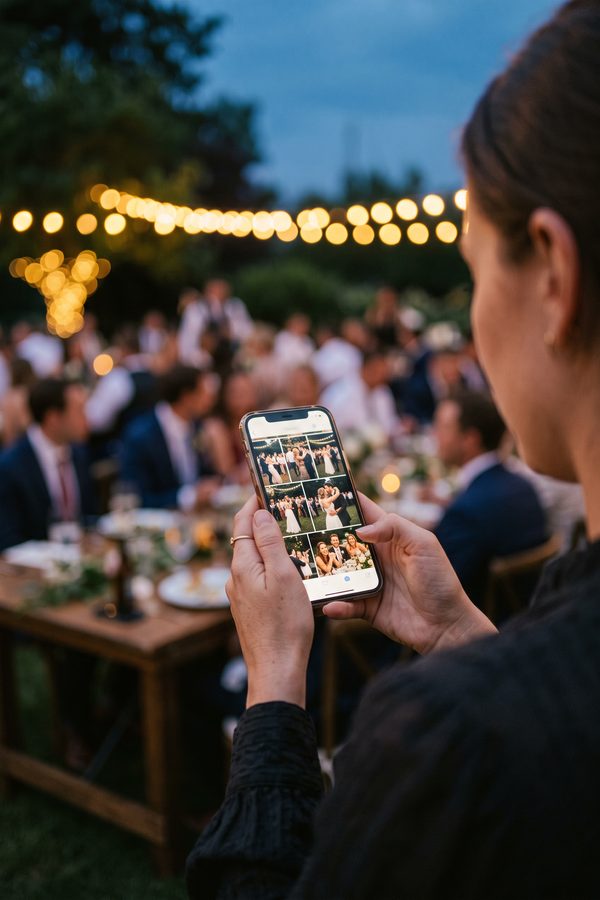
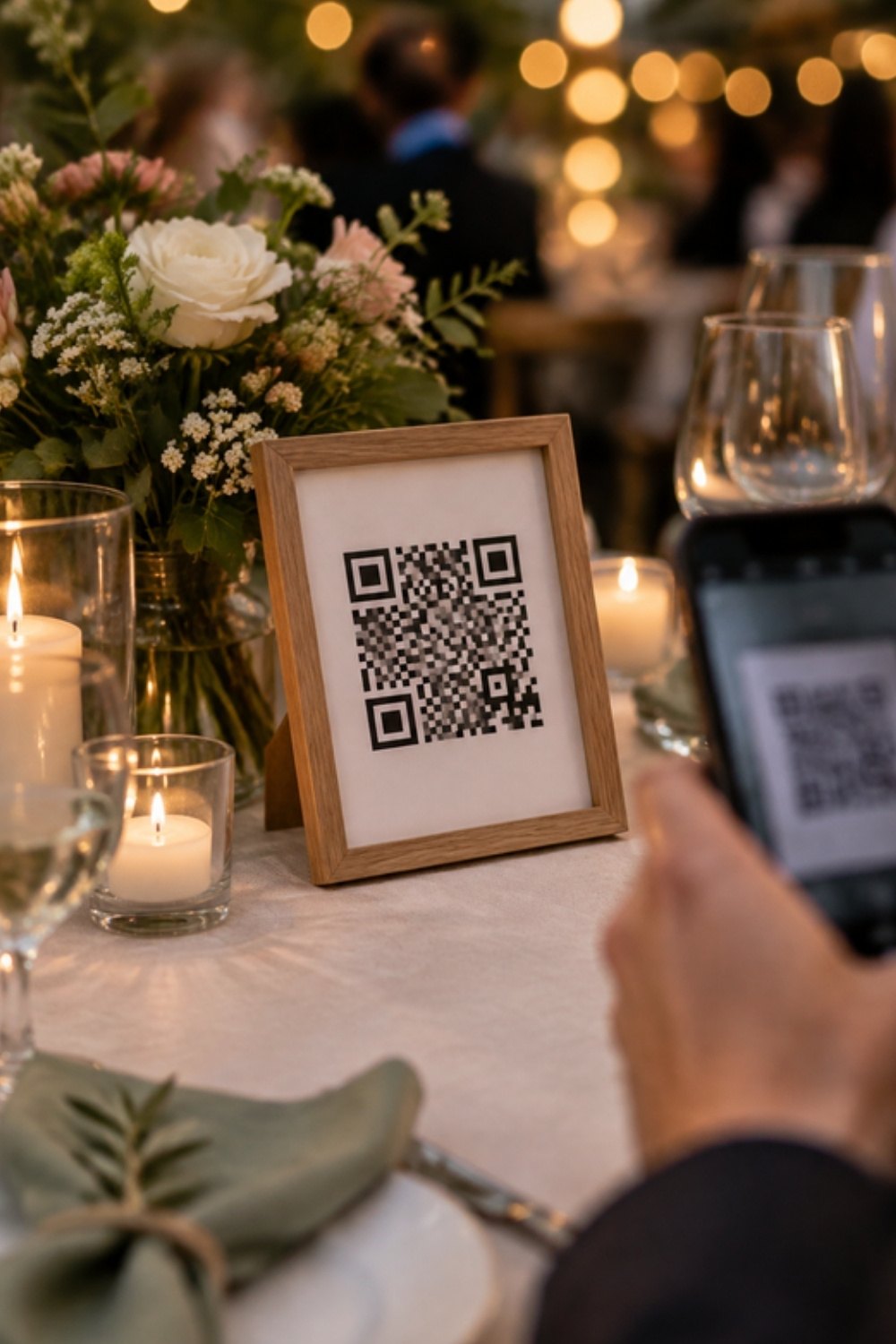
A good QR sign turns your guests' phones into an album of the whole event. The practical guide: where to put the signs, what size to print, what to write, how to test them before the event and the most common mistakes.
A good QR sign at an event answers three questions in a second: what you get, what to do, and why now. Print it big enough to scan from a chair, put it where guests are already holding their phones, and test it before the first guest arrives. That's how one sign turns every guest's phone into a single album of the event.
Two Kinds of Signs - and Why It Matters
One kind of sign invites guests to upload photos to a shared album; the other leads to the event gallery. They work at different times, so decide up front what each sign is for:
| Photo upload sign | Gallery sign | |
|---|---|---|
| What the guest does | Uploads photos and a greeting from their phone | Finds their photos with a selfie and downloads them |
| When it works best | During the event | After the photographer's photos are up |
| Where to put it | Tables, bar, photo booth | Entrance, exit, thank-you card |
Where to Put the Signs
- On every table - closest to the moment guests sit down with their phones in hand
- By the bar and the coffee station - that's where people wait, and they wait with their phones
- At the entrance, near seating or the reception desk
- By the photo booth or photo wall, if there is one
- Not behind flowers, candles or bottles, and not in a dark corner
What Size to Print
A common rule of thumb: a QR code scans comfortably from up to about ten times its width. A 5 cm code scans from about half a meter, a 10 cm code from about a meter. So:
- A4 - for tables, the bar and the entrance. You can also scale down to a small table stand, as long as the code itself stays at least 5 cm wide
- A2 - for a wall, the hall entrance, or anywhere people scan from a distance
- Print at high resolution - a blurry or pixelated code scans far less reliably
What to Write on the Sign
Guests don't scan a code without knowing what happens next. The formula that works: one headline that says what they get, three short steps, and the name of the event.
- A headline that says what will happen: "Share your moments" or "View the gallery"
- Three steps: scan the code, upload photos, add a greeting
- The event's name, so guests know it's the official sign
- If there's room: "No app, no sign-up" - the line that removes most of the hesitation
Snapick's signs are already built this way: a headline, three steps and the event's name, in Hebrew or English, in four designs. Pick a photo upload sign or a gallery sign, and download a print-quality 300 DPI PNG at A4 or A2 - or print straight from the platform.
Test Before Guests Arrive
- Scan the printed sign with two different phones - an iPhone and an Android
- Make sure the event is already published: an upload sign doesn't work while the event is still a draft
- Check reception at the venue. If it's weak, add the venue's Wi-Fi details on the sign or by the bar
- Upload one photo yourself to see that it reaches the album
- Print on matte paper: glossy paper reflects candles and spotlights and makes scanning harder
The Most Common Mistakes
- A code that's too small, or a code on a dark background with no white margin around it
- A single sign at the entrance - most guests won't go back to it
- A code that leads to a sign-up form or an app to download
- Never mentioning the sign: one line from the MC or the DJ reminds everyone it's there
And After the Event
Send the gallery link in the event's WhatsApp group or in your thank-you message too. Once the photographer's photos are up, every guest takes a selfie and gets every photo they appear in - alongside the photos guests uploaded during the event.
FAQ
How many QR signs do you need at an event?
One on every table, plus one or two at the bar and the entrance. When the sign is within arm's reach, far more guests scan it.
What size should a QR code be printed to scan well?
Rule of thumb: a code scans from up to about ten times its width. On a table, a code at least 5 cm wide is enough; for an entrance or wall sign, go bigger - an A2 print, for example.
Do guests need an app to scan the code?
No. Most phone cameras recognize a QR code on their own, and the link opens in the browser. Both uploading photos and the gallery work with no app and no sign-up.
When should the signs be prepared?
A few days before the event, after it's been published - that leaves time to print and test. A photo upload sign only works once the event is published.
How many photos can each guest upload?
In Snapick's guest album, every guest can upload up to 30 photos and a greeting. The album is included as a gift with every event.
Can the sign be printed in English?
Yes. Snapick's signs come in Hebrew and English, in four designs, at A4 and A2.